
Connect LINE to the Inbox
Read and answer your customers' LINE messages in JaaTime instead of the LINE app. You need your shop's LINE Official Account and the Plus plan or higher. Setup takes about 10 minutes.
- 1
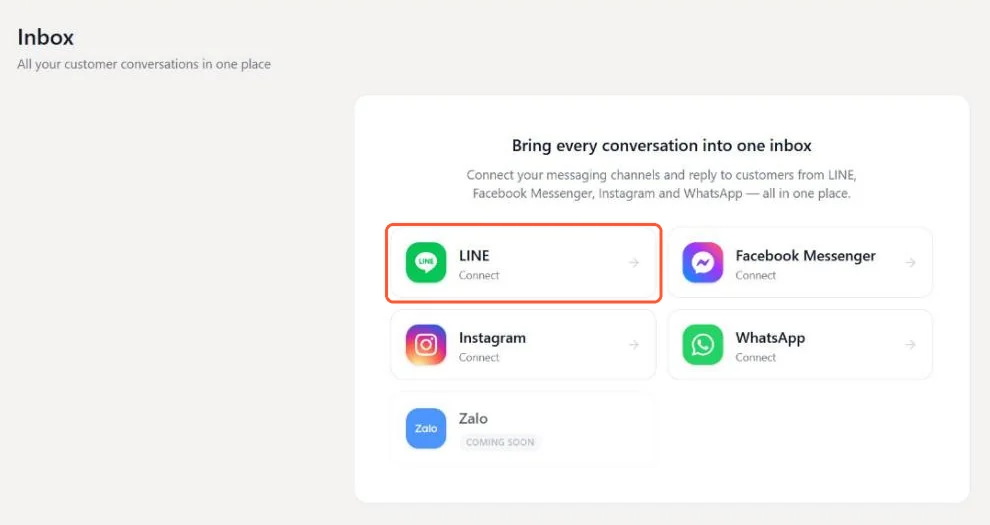
Open the Inbox and choose LINE
Click Inbox in the sidebar and press LINE. If other channels are already connected, open Manage channels and pick LINE under Add channel. Keep this window open while you copy values from LINE in another tab. Already connected your own Official Account in Settings under 'LINE and SMS'? Choose 'Use my existing LINE OA', press Connect and skip to step 8. LINE
- 2
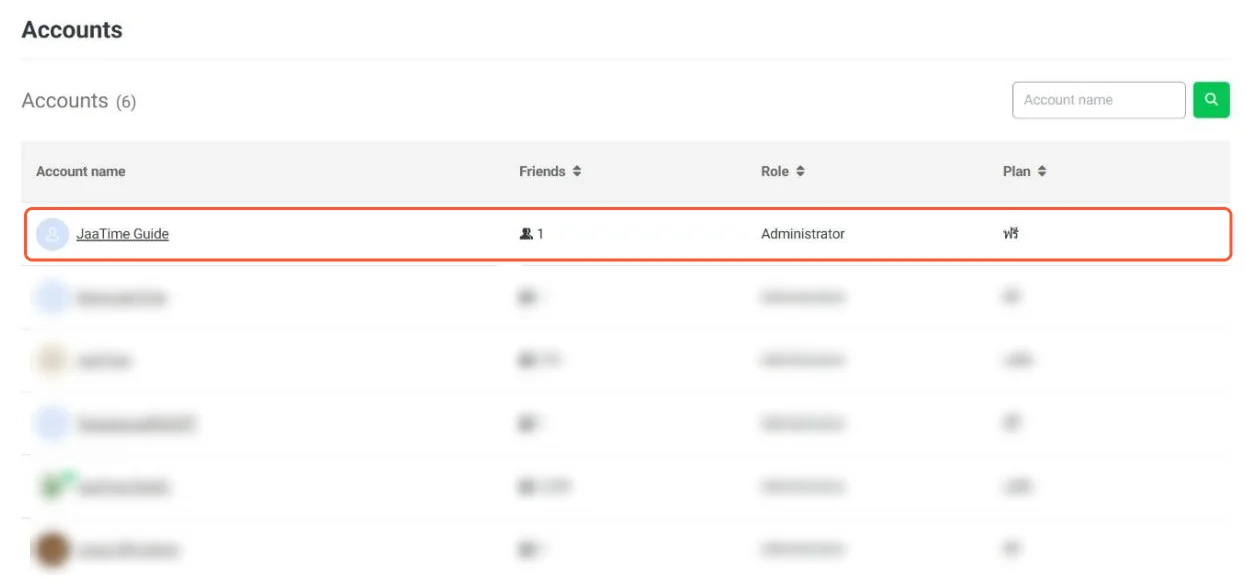
Open your Official Account in LINE OA Manager
Go to manager.line.biz, sign in with your LINE Business ID and click the Official Account your customers already added as a friend. Its menus use the language set in your LINE Business ID, so if they look different from the pictures, check that setting.
- 3
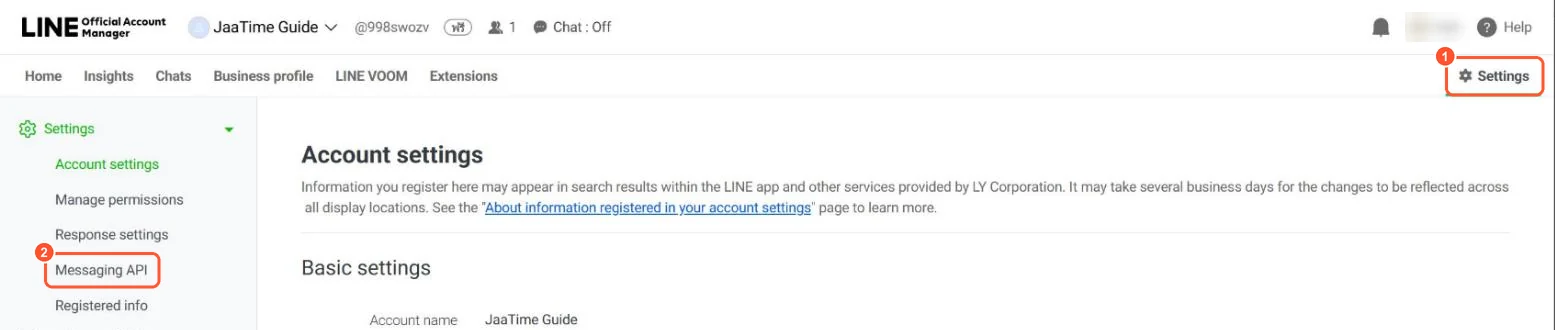
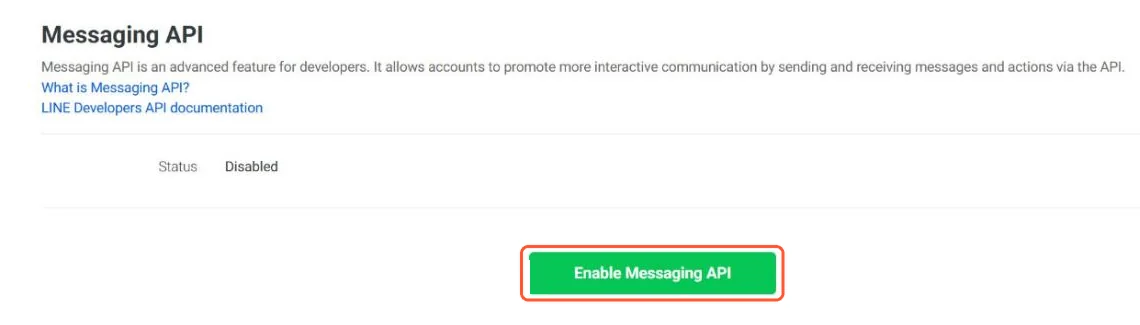
Turn on Messaging API
In that account, click Settings at the top right, then Messaging API in the left menu, and press Enable Messaging API. If the status already says Enabled, skip to step 5. Do not create a Messaging API channel in the LINE Developers Console instead: that makes a brand-new, empty account that none of your customers follow. Enable Messaging API
- 4
Create a provider and confirm
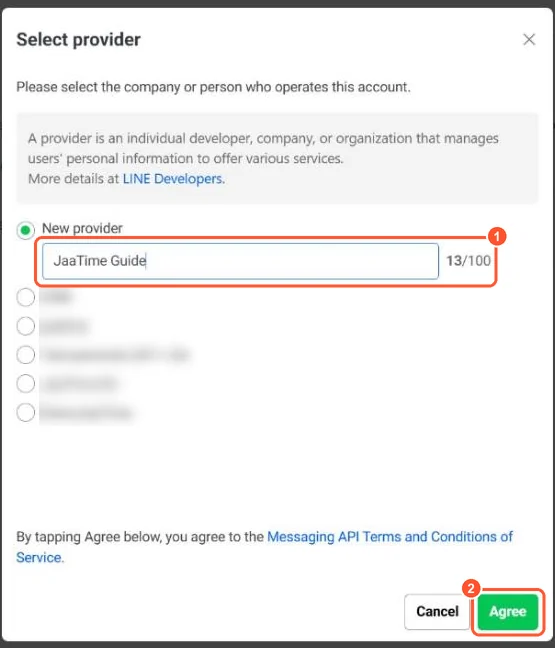
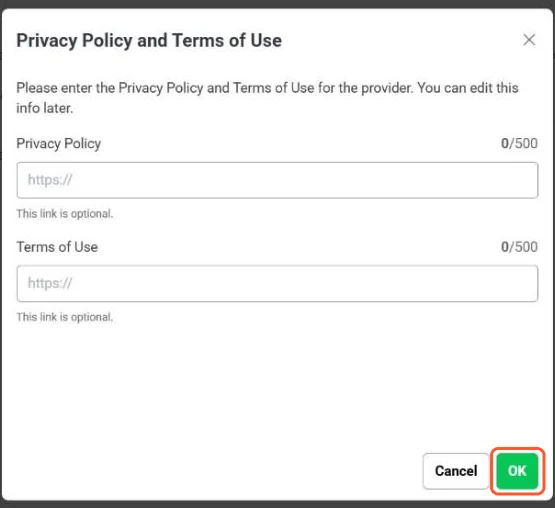
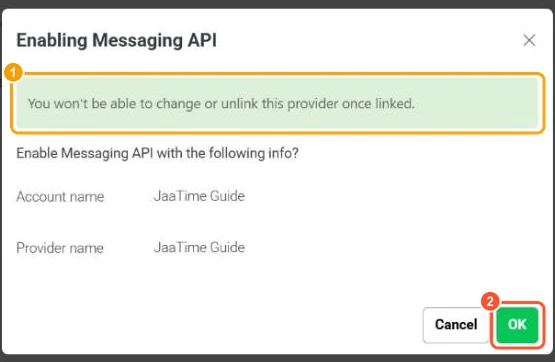
LINE asks for a provider, which is a folder for your shop's LINE apps. Choose New provider, type any name (your shop name works) and press Agree. The privacy policy and terms of use links are optional, so press OK, then OK again to confirm.
The provider cannot be changed or unlinked later. If your shop already has a provider in LINE Developers, pick that one instead of creating a new one.
- 5
Copy the Channel secret
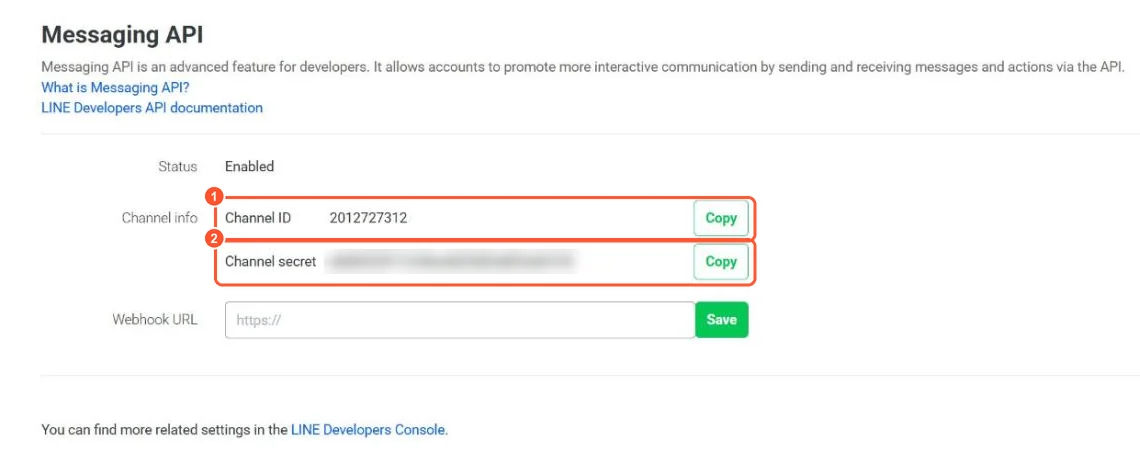
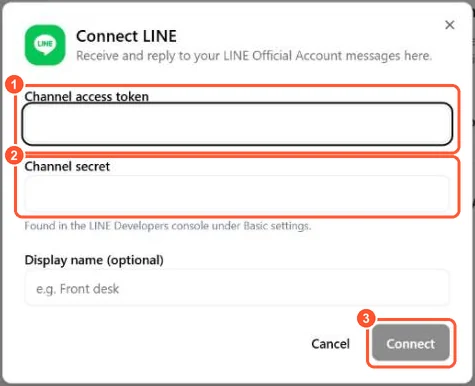
The Messaging API page now shows the Channel ID and Channel secret. Press Copy next to Channel secret and paste it into the Channel secret field in JaaTime.
- 6
Issue the channel access token
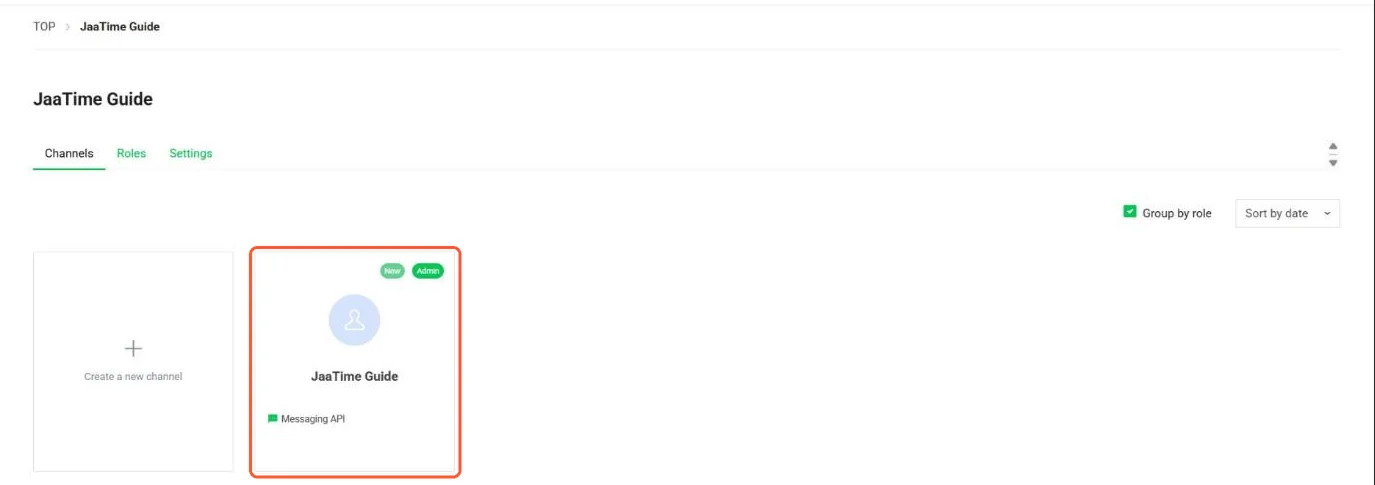
Open the LINE Developers Console at developers.line.biz/console and sign in with the same LINE account (it is in English or Japanese only). Click your provider, then the channel named after your Official Account. On its Messaging API tab, scroll to Channel access token (long-lived), press Issue, copy the token and paste it into the Channel access token field in JaaTime. Issue
Later on, do not press Reissue: it makes a new token and the old one stops working at once, so the Inbox stops getting messages until you connect LINE again with the new token.



- 7
Connect
With both values pasted, you can add a Display name such as 'Front desk' to tell channels apart. Then press Connect. Connect
- 8
Turn on Use webhook and verify
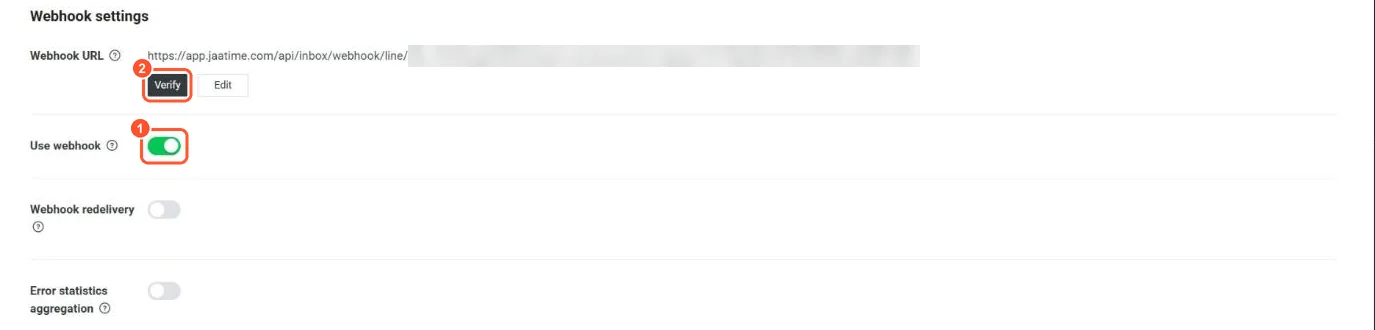
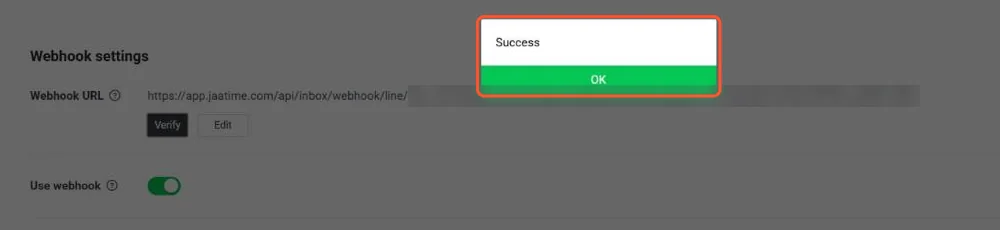
JaaTime fills in the Webhook URL for you, but LINE leaves Use webhook off. In LINE Developers, on the same Messaging API tab, find Webhook settings, switch Use webhook on and press Verify: LINE should answer Success. Then press Verify in JaaTime too. Verify
- 9
Turn off LINE's automatic replies
A new Official Account answers every message with LINE's own automatic reply, so customers would get it on top of your answer. In OA Manager open Settings, then Response settings, and switch off the auto-reply messages. Leave Webhook on.
- 10
Check that messages arrive
In Manage channels your LINE channel shows 'Awaiting first message' until someone writes. Send your Official Account a message from your own LINE: it appears in the Inbox, and you can answer it right there.